
Set up your first scheduled task with Claude or ChatGPT
Choose one task you repeat, test the result, then give it a schedule. Start with a copyable interview prompt and follow the steps for the AI tool you use.

In this article
A scheduled task gives an AI assistant instructions to run at a chosen time. Start with a narrow job and a result you can check, such as a short research brief or a practice question.
Maybe you open the same websites every Monday for industry updates, then collect useful links in a note. Start with that research step. Get one good result before asking for it again next week.
Choose the work first. The interview below helps identify a task from your own responsibilities and apps.
Test the result. Check the sources and format before adding a schedule.
Confirm the setup. Read the saved instructions, time zone, and first completed run in the product itself.
Find a task worth repeating
A recurring task needs the same basic instructions each time. Preparing a weekly update can fit; handling a sensitive client complaint needs more judgment. Choose work whose result you can review.
Open a fresh conversation in Claude or ChatGPT and paste this prompt. Describe the spreadsheet you check, the report you write, or the email draft you keep rebuilding. Include the apps involved.
Find my first recurring task
Help me choose one recurring task to try with Claude or ChatGPT. Interview me before recommending anything. Ask one question at a time and wait for my answer.

Start with my role and responsibilities. Don't assume I own a business. Ask about:
- Work I repeat daily or weekly, including life admin if I want to include it.
- The apps I use, where the information comes from, and what I do with it.
- The result I need: its format, who uses it, and what makes it useful.
- How often the task happens, what starts it, and which steps take the most effort.
- Mistakes to avoid, decisions I need to keep, and any workplace rules.
- Which Claude or ChatGPT product and plan I use, which scheduling controls I can see, and which apps I have connected and permission to use.

Use my answers, not guesses. Ask me to describe sensitive information rather than paste it. Don't request passwords, account numbers, or private client details. Don't access connected apps or private files during this interview.

Then suggest 3 specific tasks. For each, explain the input, expected result, frequency, and review step. Separate what my current AI product supports from anything needing a connection, a different tool, or a person. Check current official documentation before making capability claims; flag anything you cannot verify. Don't promise time savings.

Help me select one task with a clear result I can check. After I choose, write a complete prompt for a one-time manual test, including the sources, output format, and limits. Ask me to run it and tell you what needs correcting.

After we review the test, draft scheduling instructions with an explicit time zone. Show the exact task instructions and proposed schedule for my approval. Do not create a schedule or take external actions until I explicitly confirm.

Start with your first question.
You can also select and copy the text.
Choose one suggestion. An inbox summary needs an available email connection and permission to read it; a chat request does not establish that connection. Start with the public research example below before adding private work.
Run the task once before scheduling it
A first run lets you correct the instructions while you're there. This example creates a short brief about Claude and ChatGPT updates from public sources, keeping the result inside the AI app.
Test a short research brief
Run this once now. Do not schedule it yet.

Find up to 3 updates from the last 7 days about scheduled tasks in Claude and ChatGPT. Use public pages from OpenAI and Anthropic as sources. Search the web for current information; if you cannot, stop and tell me.

For each update, give me:
- The product and what changed, in 2 sentences.
- The publication or update date, if the source gives one.
- A direct source link.
- One practical thing a busy employee or business owner could try.

Keep the whole brief under 300 words. Separate confirmed features from announced rollouts. If you find fewer than 3 relevant updates, include fewer. If there is no new information, say so. Do not invent an update to fill space.

Return the brief here. Use only public sources; don't open connected apps, contact anyone, or change anything outside this conversation.
You can also select and copy the text.
Open the source links. Check that each page supports the claim, that the dates match, and that the suggested next step makes sense for your account. If the brief includes old news or too much detail, explain the correction and run it again. Save the full instructions that produced the version you'd want to read.
Choose a time you will use the result
Pick a cadence that matches the work. Use this prompt in the same conversation as your test to prepare the instructions. It does not create the task.
Prepare the recurring brief
Prepare the research brief we tested for a recurring schedule. Do not create a task or schedule anything.

Task name: Claude and ChatGPT update brief.
Schedule: Monday through Friday at 9:00 AM, America/New_York. This is an example; ask me to confirm or change the timing and time zone first.

Then return 2 labeled parts:
1. Task instructions: the complete approved research rules, including the sources, 300-word limit, and what to do when there are no relevant updates. Remove the one-time test instructions "Run this once now. Do not schedule it yet." and any other setup-only wording. Return each brief in this AI app.
2. Schedule: the confirmed frequency, time, and time zone.

Tell me if my account cannot support the requested task or timing. I will review these parts and create the task myself in a separate step. Do not create it for me.
You can also select and copy the text.
Read the returned Task instructions and remove any remaining one-time test wording. Use those instructions in the setup below, then create the task once. Treat 9:00 AM as the requested run time, not a guarantee of when the answer will finish.
Set up the task in Claude
Claude offers scheduled tasks on paid plans. Anthropic is rolling out a combined chat and Cowork experience, so the creation path can differ. Follow the path in your account.
Open Scheduled in the left sidebar, then choose New task → Set up manually. Name the task and paste the prepared Task instructions into Instructions. Leave out the one-time test and setup wording.
Choose a frequency, such as Weekdays, then set the time. The manual form shown here has no time-zone field. Ask Claude to clarify the intended zone, then compare the saved next run with the timing you expect. A chat assurance alone does not verify it.
Review the instructions and permissions, then choose Save. Open the saved task to check its status and next run, and choose Run now to test the saved version.
For help with setup, choose New task → Create with Claude instead. If your account has the combined chat experience, describe the task in a conversation. Review the proposed name, instructions, and schedule before choosing Schedule.
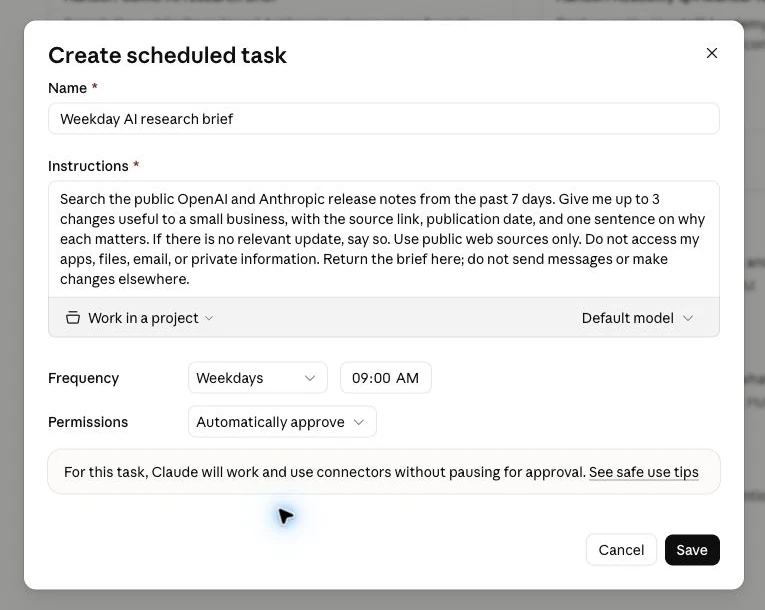
In Settings → Preferences → Notifications, check Scheduled tasks to be told when a run finishes, can't run, or needs your input. Open a result from the task's history to read the brief. Use Edit to change the instructions or cadence, or turn Enable schedule off to pause future runs. Pausing does not stop a run already in progress.
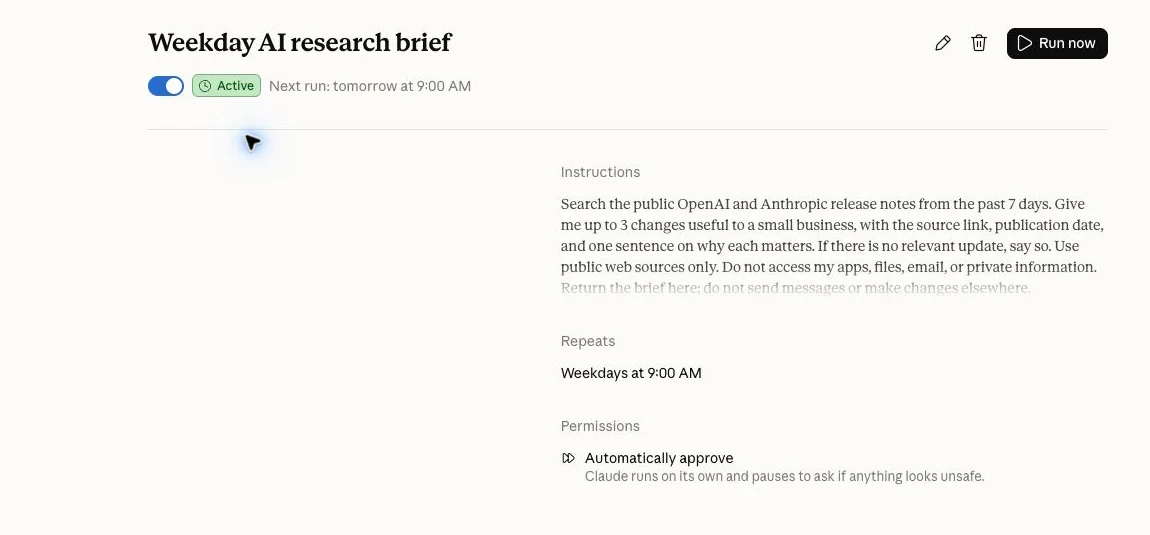
Watch the Claude walkthrough to see the setup and the result check.
Anthropic documents remote runs for public research, including when the desktop app is closed. Keep this first task to web research; local folders or additional app permissions need their own setup and test.
Set up the task in ChatGPT
Open Scheduled to create and manage tasks in ChatGPT. Availability depends on the account and app version. OpenAI's current guidance gives Free accounts flexible time windows; exact times require an eligible paid plan. Check the schedule your account offers before accepting the 9:00 AM example.
Open ChatGPT on the web and choose Scheduled. In Schedule a task, enter the prepared task instructions and the frequency, time, and time zone you confirmed. Remove the one-time test and setup wording before choosing the Send prompt arrow to create it.
Open the task card in the resulting conversation. The task panel shows Prompt, Frequency, and Next run; the editor shows no time zone, so compare Next run with your own clock. Check the selected days and time against your intended schedule; a chat response can get a weekday wrong.
Use Edit prompt to correct the instructions or the Frequency controls to adjust timing. Open More actions → Run now to test the saved task, then read the completed brief in the conversation.
Choose the pause control in the task panel to stop future scheduled runs. Confirm that it changes to Resume and Next run says Not scheduled. Resume when the task is ready to run again.
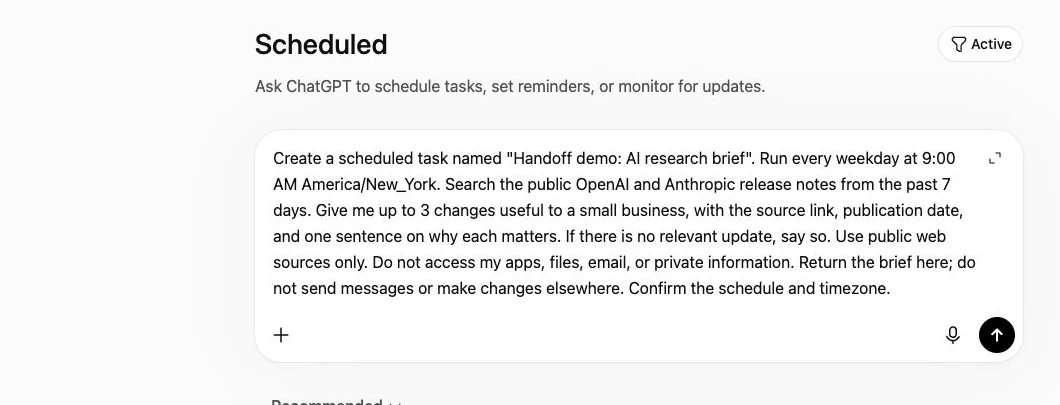
Open More actions → Notification settings to check alerts, and grant device permission when prompted. The same menu includes Delete. If a task pauses or needs input, inspect its status before creating a replacement, so you don't end up with two copies.
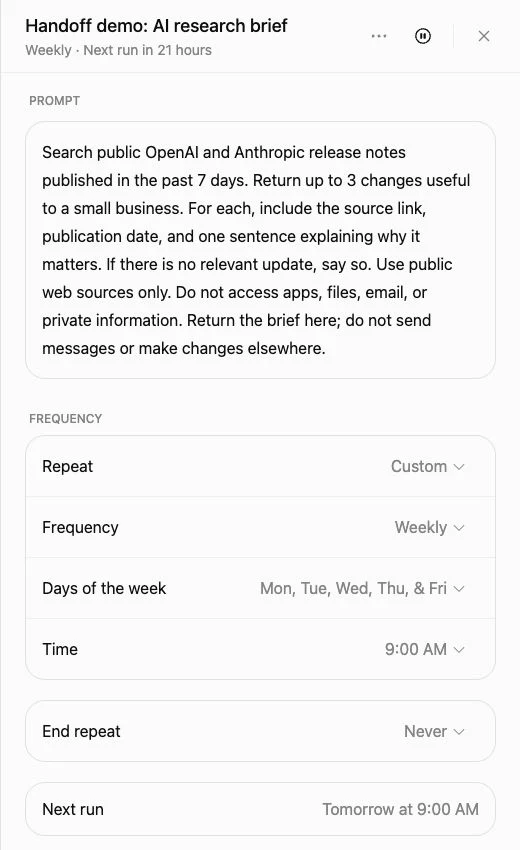
Watch the ChatGPT walkthrough to follow the task from setup to review.
Review the first scheduled result
Check the first scheduled result for timing, sources, and usefulness. A saved task confirms the setup; the completed result shows whether it worked.
If a run stalls, check for a request, usage limit, or missing permission. Pause the task while you fix it, then test again. Once the brief earns its place in your week, return to the interview for your next task.