
Mother of AI is now Handoff Academy.
A new name for a practical goal: learning to hand off the repeat work. Here’s what changed, why it changed, and a look inside the Academy.
Updated
In this article
Mother of AI is now Handoff Academy. The new name comes with a refreshed learning experience: clearer stage names, scrolling visual guides, practical checklists, and new video walkthroughs. The purpose is familiar: help you put AI to work on the tasks that keep coming back.
That work belongs to many people. You might own the business, run its operations, manage the inbox, or support clients as an employee or virtual assistant. Handoff Academy is built for the person doing the work, with lessons and tools you can apply in your own Claude or ChatGPT account.
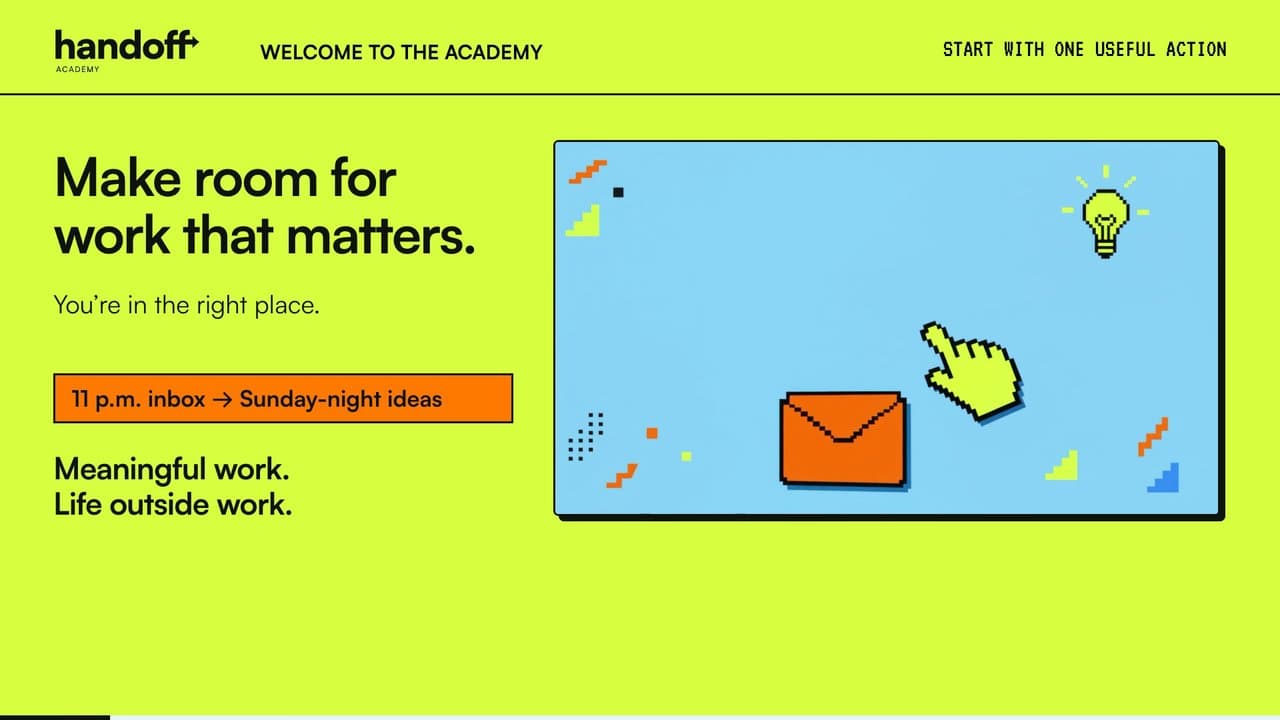
Welcome to Handoff Academy
Music credit
“Upbeat Forever” by Kevin MacLeod, licensed under CC BY 4.0. Excerpted, faded, equalized, and ducked beneath narration.
Why Handoff Academy?
Handoff names the outcome you’re working toward. The follow-up you rewrite every week. The notes you keep meaning to organize. The daily check across your email, calendar, and files. Learning to give that work clear instructions, check the result, and make the process repeatable is what the Academy is here to teach.
Academy makes the learning part explicit. You build the workflows; the lessons, ready-made starting points, and support help you do it. You don’t need to become a programmer to start. You do need to know the task, bring your judgment, and review what your AI produces.
The new name also gives the wider community a clear place in the story. Owners, operators, employees, and VAs all carry recurring work. An owner can choose someone who supports the business to take the Academy instead. The examples and instructions should make sense to that learner, too.
Crawl, Walk, Run becomes Set up, Connect, Hand off.
The three-stage path now says what you’ll do at each stage. If you already know the Academy as Crawl, Walk, Run, here’s how the names line up.
| Previous name | New name | What you’ll work on |
|---|---|---|
| Crawl | Set up | Get your AI assistant ready and give it useful context about the business you own or support. |
| Walk | Connect | Connect your tools and build steps you can check and repeat. |
| Run | Hand off | Put recurring workflows into practice, supervise the first run, and use a schedule where it fits. |
These names replace the labels on the existing path. They don’t reset your account or completed lessons. Pick up where you left off. Skills Hub and Prompt Enhancer unlock as you reach the lessons that teach them.
A little ’90s curiosity goes a long way.
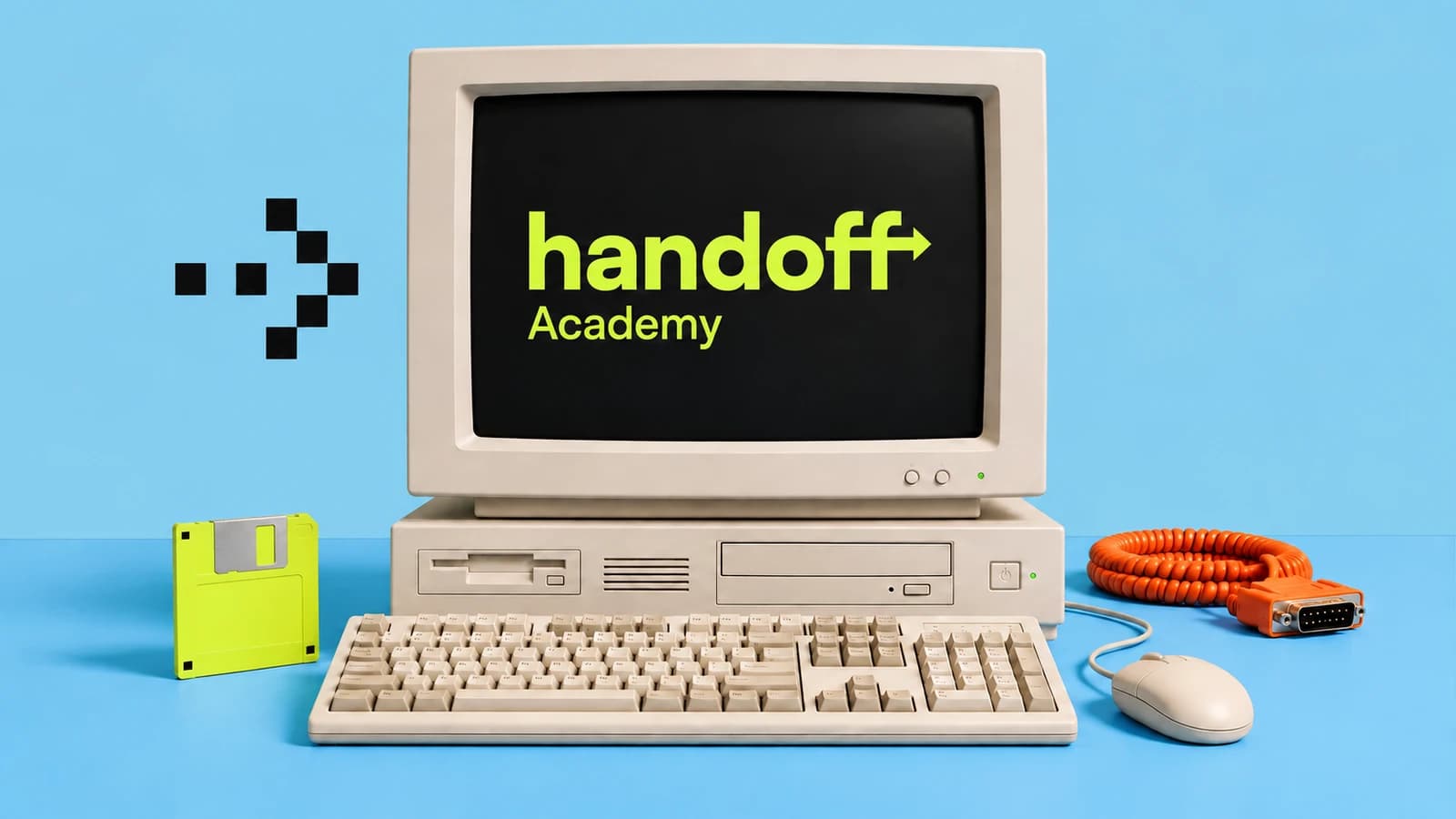
The chunky computer, pixel details, bright lime, and familiar desktop objects are deliberate. They bring back the feeling of sitting down at a computer and finding out what you could make it do. That sense of curiosity belongs in learning AI, too.
There’s room for play while you learn something useful. A floppy disk can mark a fresh start; a cable can make a connection feel tangible. The Handoff arrow points toward moving a task along. The visual language gives the Academy personality while the actual software screens show you where to click.
Reading areas stay clear, with modern controls and room for the instructions. The nostalgia lives around the work. You still get a practical guide you can keep open beside the tool you’re learning.
Keep the whole lesson in view.
The refreshed visual guides put the steps on one scrolling page. Move down the lesson at your pace, look back at an earlier instruction, or jump to a section from the contents outline. You can keep your place while you work in another window.
Numbered actions name the click or instruction. Screenshots sit beside the step they explain. Copyable prompts give you the exact starting words, and short Check lines tell you what to look for on your own screen. The goal is to make the next action clear and give you a way to recognize when it worked.
The checklist gathers the lesson’s milestones in one place. Use it to track what you’ve done as you work through the guide. Each lesson still has its own completion requirements; checking an item is a useful working aid.
Different lessons need different formats. A welcome can be a short video and one goal. A setup task needs detailed steps. A longer workflow needs a guide you can return to. The refresh gives each kind of lesson a format that suits the work.
Follow the steps for your AI.
Supported lessons offer Claude and ChatGPT tabs, so the instructions name the controls in the tool you’re using. Where a task calls for a model choice, lesson-specific guidance explains a sensible model and thinking effort, along with when you might change it.
You’ll also see the term Work Mode in the learning path. Each tool’s instructions explain its own interface and permissions. The underlying skill is learning to describe the task and check the work; the exact buttons and available features can differ.
Start with a Skill you can make your own.
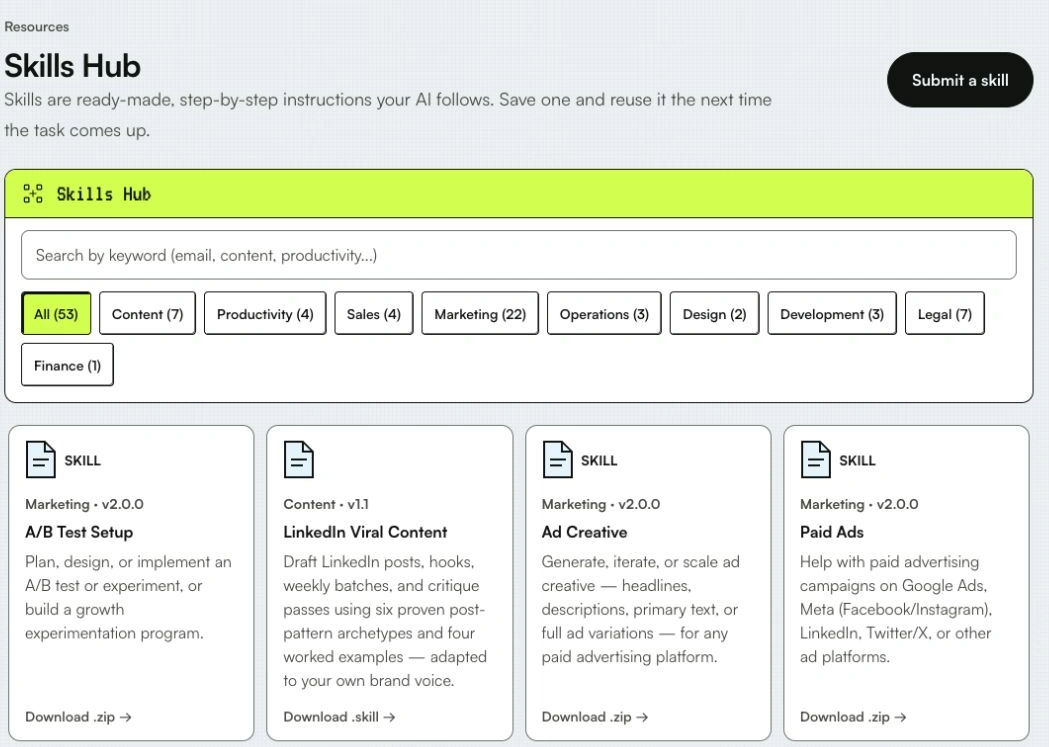
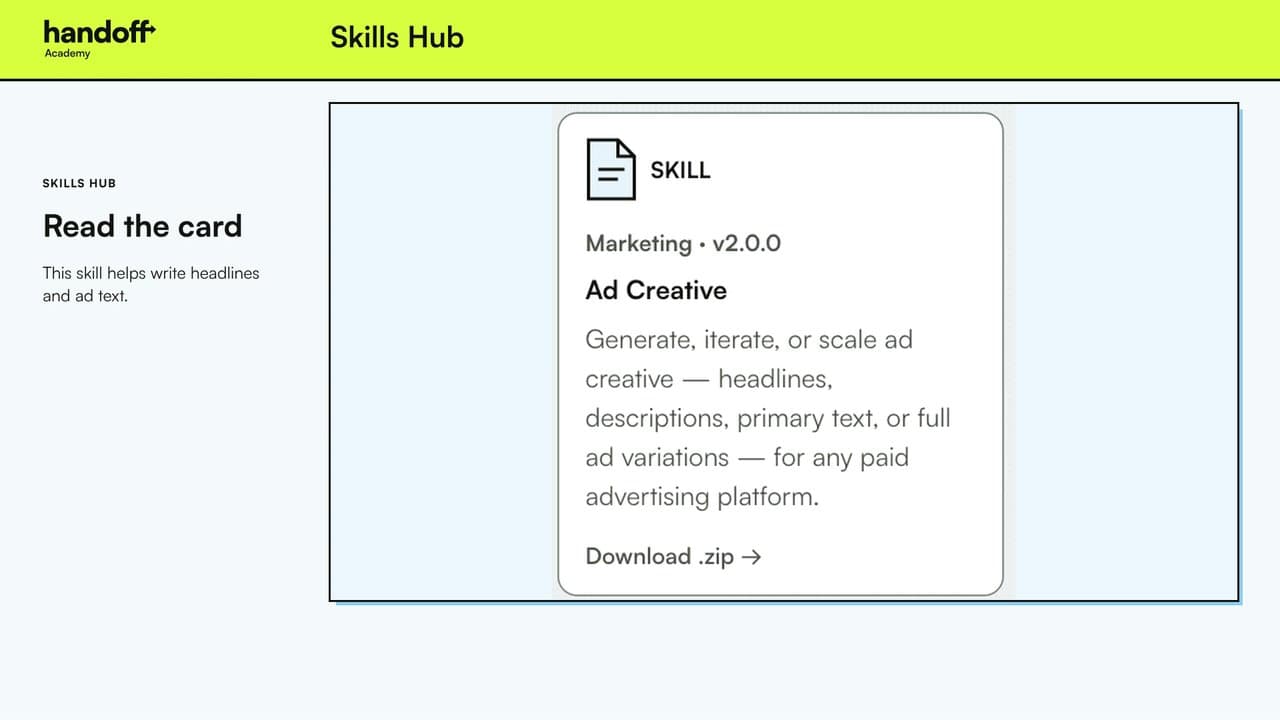
The Skills Hub gives you ready-made instructions for common business tasks. Search the library, choose a relevant starting point, and adapt it to your work. The refreshed walkthrough shows how to find a Skill and use it in a complete writing example.
You still review the facts, offer, and wording before using the result. A useful starting point becomes more useful when it carries your business context and your judgment.
Skills Hub walkthrough
Music credit
“Upbeat Forever” by Kevin MacLeod, licensed under CC BY 4.0. Excerpted, faded, equalized, and ducked beneath narration.
Turn a rough idea into a clear request.
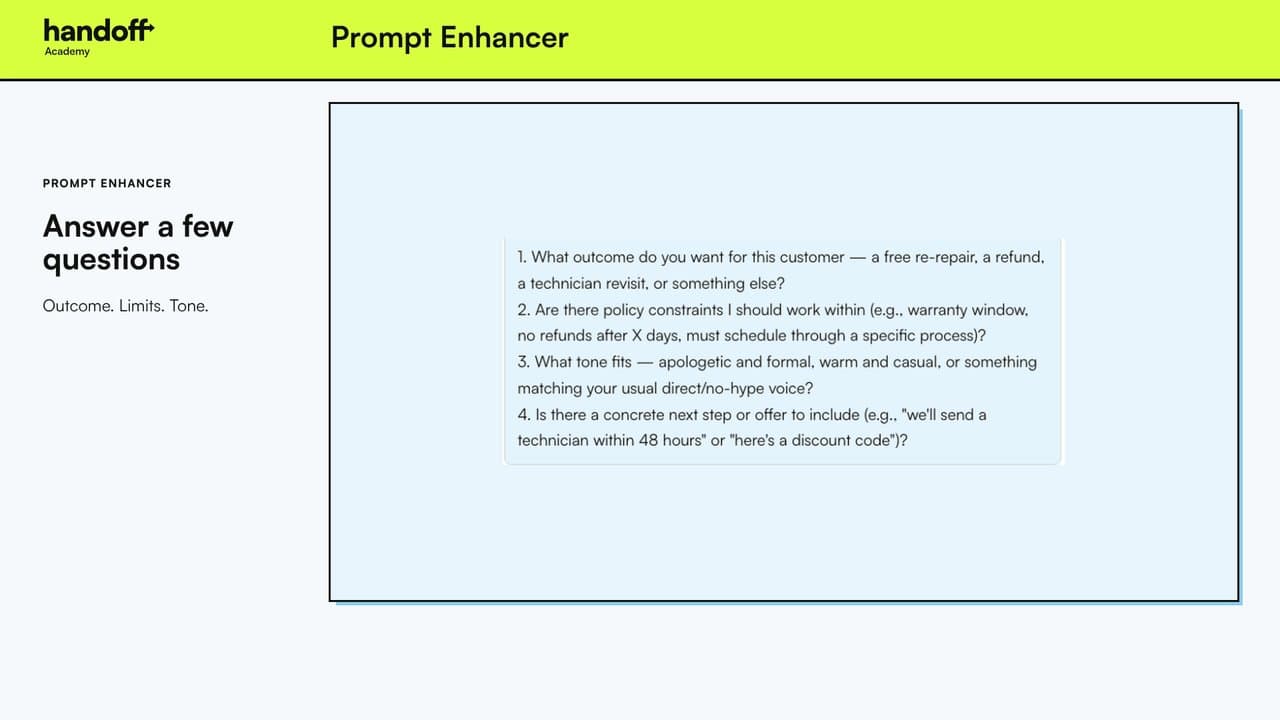
Prompt Enhancer helps when you know what you need but haven’t quite explained it. Start with your own rough request or a premade prompt, answer any follow-up questions, and copy the clearer instruction into your AI tool.
The new walkthrough follows a fictional customer-support example from the initial request through the finished prompt. You can see how details about the issue, the desired response, and the next action give your AI a more useful brief.
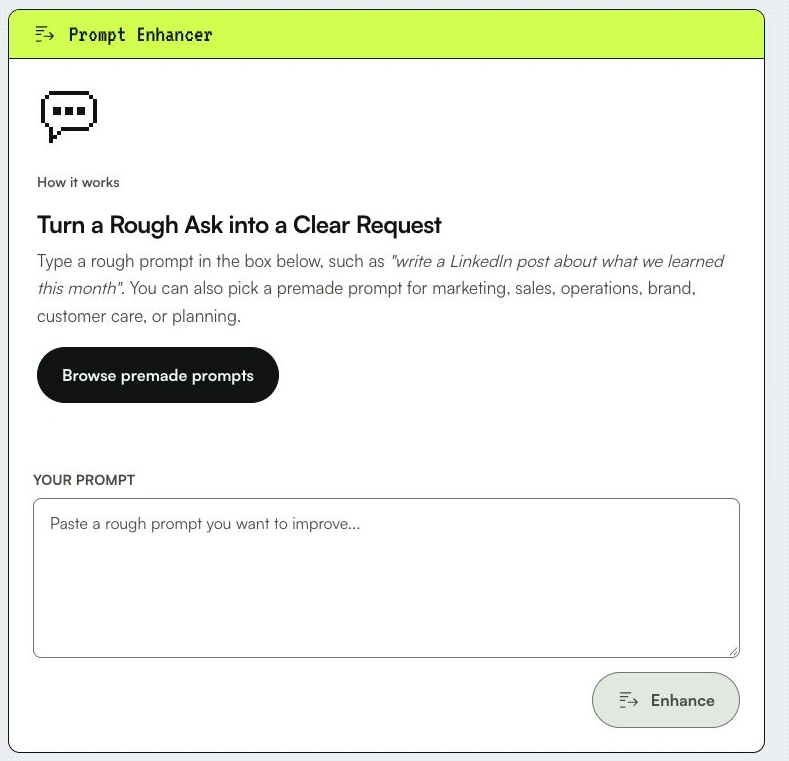
Prompt Enhancer walkthrough
Music credit
“Upbeat Forever” by Kevin MacLeod, licensed under CC BY 4.0. Excerpted, faded, equalized, and ducked beneath narration.
When a step doesn’t click, ask Mai.
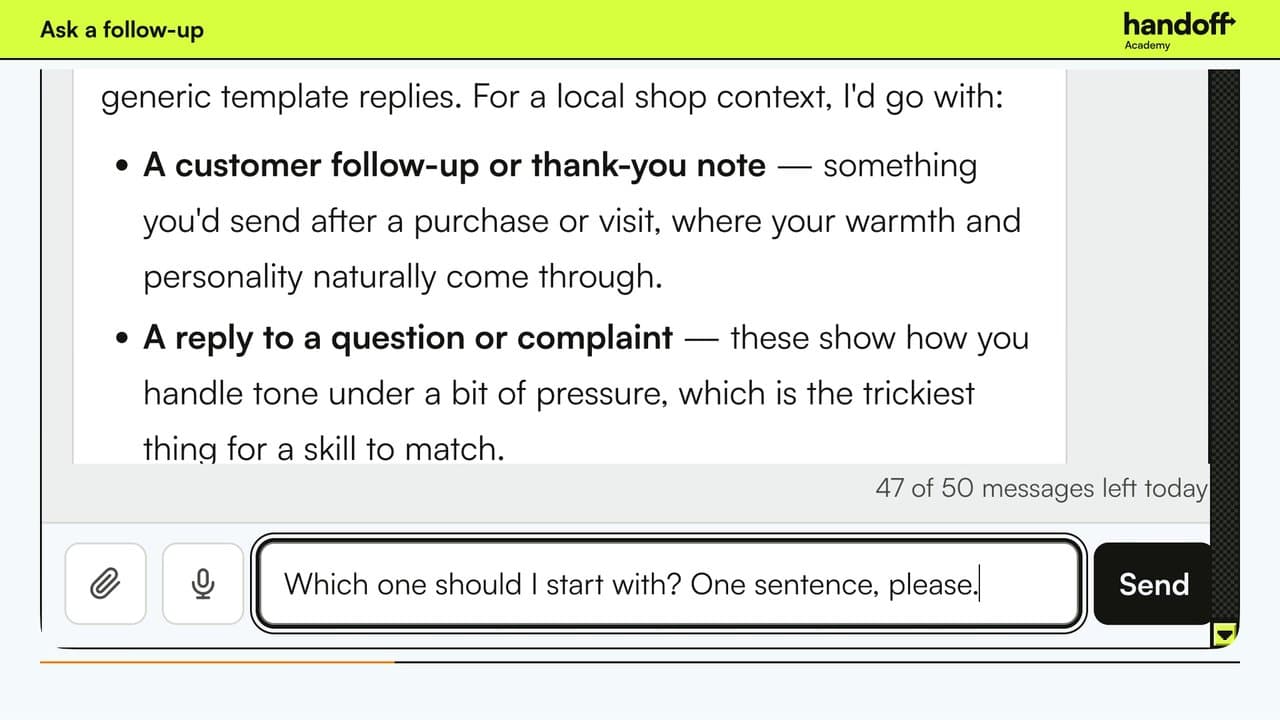
Mai is the Academy’s AI tutor, available inside your lessons. Ask a specific question about where you’re stuck, then use follow-up questions to get simpler steps or an example for your business. She can point you toward the relevant lesson or tool.
The current walkthrough also shows image and PDF attachments, voice notes you can review before sending, and chat history for picking up a previous conversation. You don’t need a perfect first question. Share the details that matter, review what you attach, and check her suggestions against your own work.
Meet Mai, your Academy tutor
Music credit
“Upbeat Forever” by Kevin MacLeod, licensed under CC BY 4.0. Excerpted, faded, equalized, and ducked beneath narration.
People in your corner. Workflows in your account.
Brittany Valdes and Thomas Echezabal remain the people behind the Academy. Premium adds a kickoff call in your first week, weekly group Office Hours on Zoom (12 over your 90 days) and the members-only WhatsApp community, a place to bring questions and compare notes.
The Office Hours calendar brings the sessions into the portal. Choose a session to see its details and RSVP, and check the calendar for current dates and any scheduled breaks.
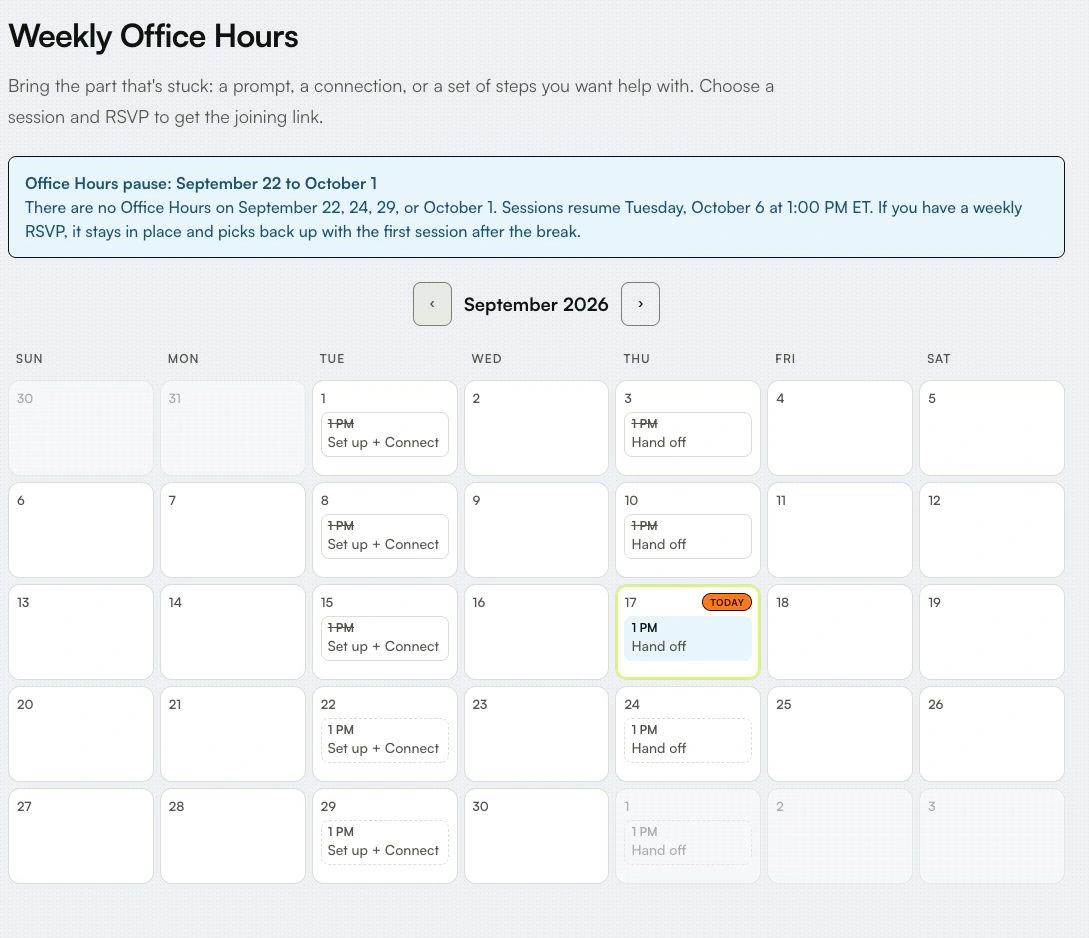
Already a member? Open the Academy and continue from your current stage. New here? Take a look inside, then choose one recurring task you’d like to work on first. That’s a good place to begin.
A few useful answers.
Is Handoff Academy the same Academy as Mother of AI?
Yes. Handoff Academy is the new name, with refreshed branding and learning formats. Brittany Valdes and Thomas Echezabal remain the founders.
Do existing members need to start over?
No. The renamed stages use the existing learning path and saved progress. Sign in at portal.handoffacademy.com to continue.
Do I need both Claude and ChatGPT?
No. Follow the route for the tool you use. Supported lessons provide separate instructions; features and account requirements can differ. AI subscriptions are separate. Set up works on a free account; Connect and Hand off use paid features. Some workflows also use outside tools with their own plans.
Who is Handoff Academy for?
Business owners, operators, employees, and virtual assistants who want practical guidance for recurring work. An owner can choose an employee or VA to take the Academy instead.
Can I enroll a team?
Yes. Team checkout supports 2–10 Basic learners or 2 Premium learners, each with their own account. See the current membership options for team rates and the enrollment FAQ for assignment and activation terms.